Workflow hub
AI image outpainting and canvas expansion
Use source-guided generation and aspect controls to create square, portrait, or landscape versions from one uploaded image.
Users want to expand, reframe, or adapt a source image into square, portrait, or landscape outputs for different channels.
Best fit
When to use this workflow
This hub is built for users who already have a source image and need a controlled result instead of a blank-canvas text-to-image output.
Social crops, thumbnails, banners, product hero images, and wider concept scenes.
Users who need the same visual idea adapted to multiple aspect ratios.
Creators who want a scene to feel larger without manually rebuilding the image.
Workflow tutorial
How to get a better result
Step 1
Upload the image
Start from the visual you want to reframe or expand.
Step 2
Pick the aspect goal
Choose square, portrait, landscape, or source ratio depending on the channel.
Step 3
Describe added context
Ask for matching surrounding detail, extra background, or a wider environment that fits the source.
Step 4
Check edge continuity
Compare the result for natural composition, subject placement, and believable surrounding detail.
Prompt recipes
Use these as starting points, then replace the subject, setting, or channel-specific goal with your own image context.
Landscape banner
Create a wider landscape version, keep the main subject centered, extend the surrounding environment naturally, polished campaign look.
Portrait social crop
Adapt this image into a portrait social composition, preserve the hero subject, add matching background space above and below.
Square thumbnail
Reframe into a clean square thumbnail, keep the subject readable, improve visual hierarchy and balanced negative space.
Source image checklist
Examples for this workflow
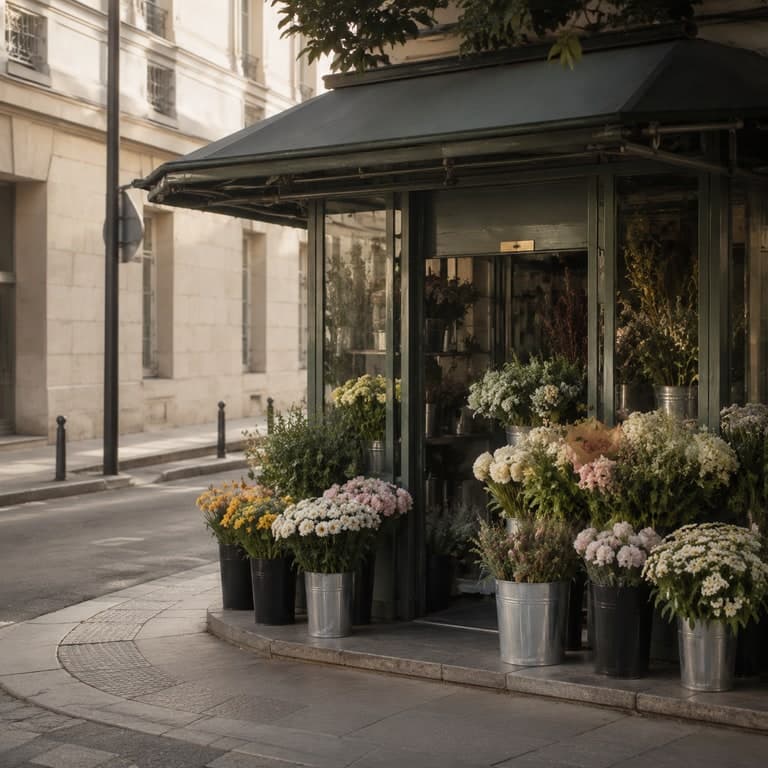
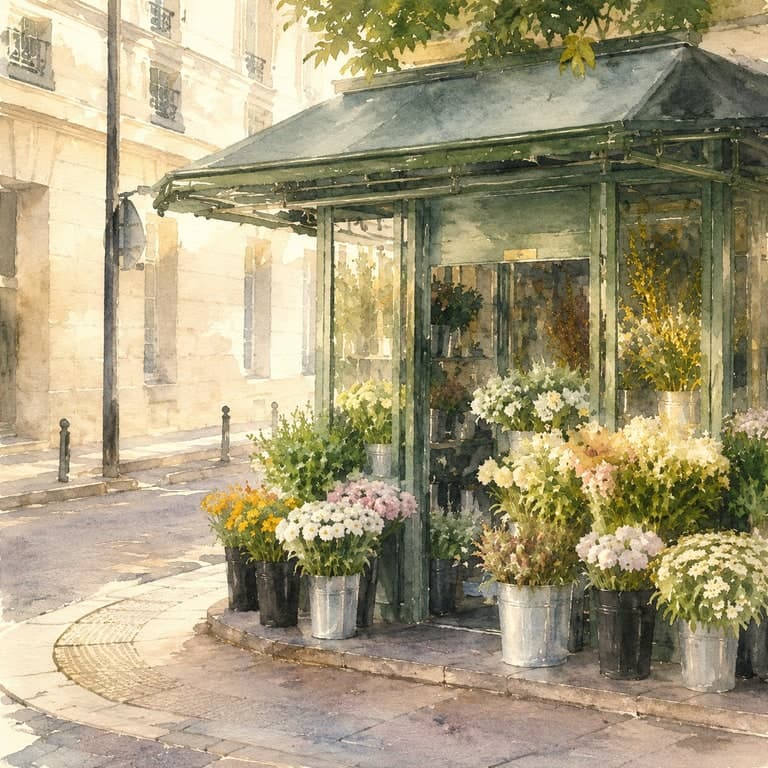
Photo to watercolor example
Photo to Watercolor Illustration Example
Transform a street flower kiosk photo into a delicate watercolor illustration with paper texture and airy morning light....
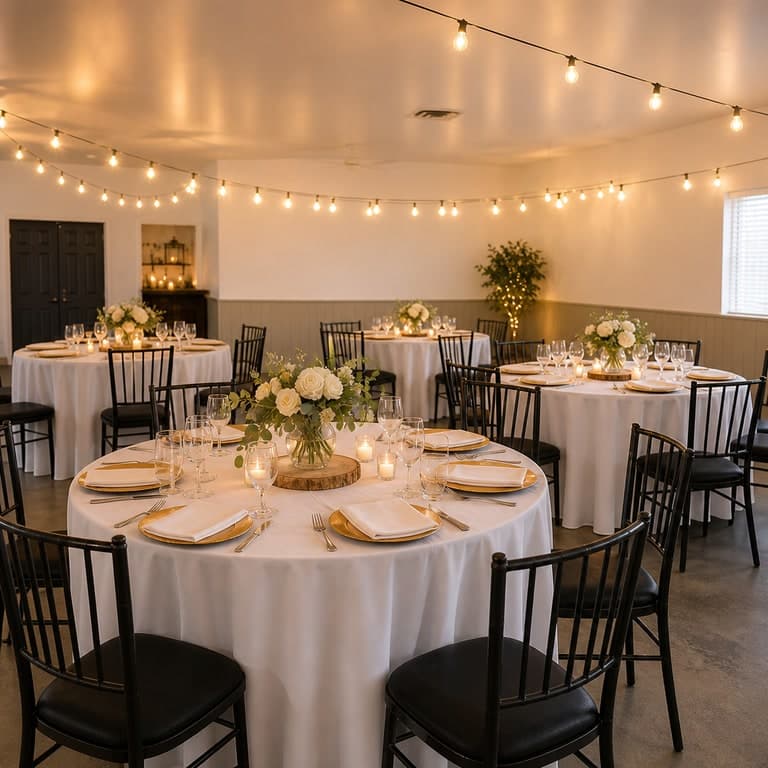
AI event venue photo example
AI Event Venue Marketing Example
Improve a simple venue source image into a warmer scene for event pages, brochures, and booking funnels....
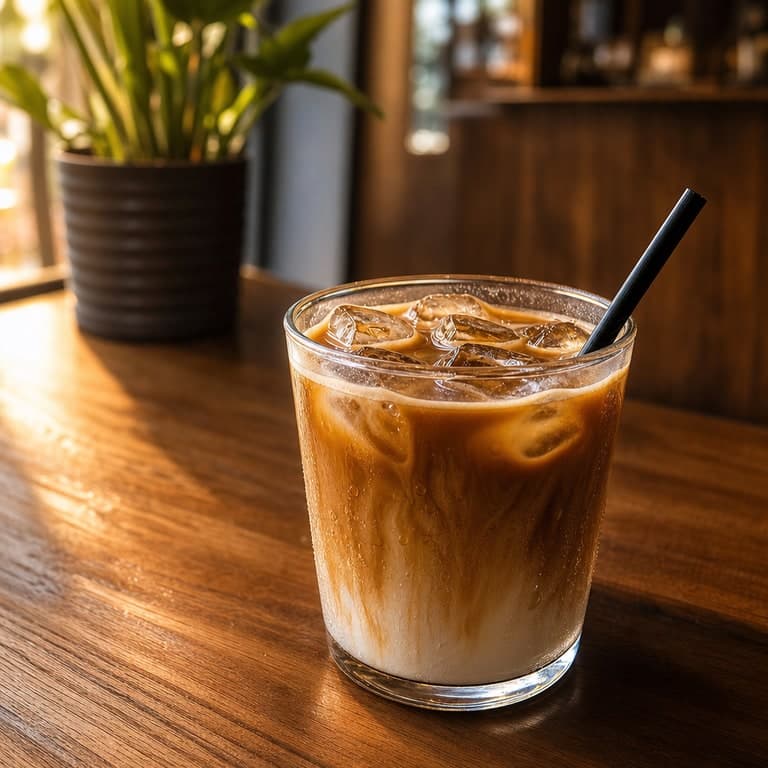
AI cafe social media image example
AI Coffee Shop Social Example
Enhance a casual cafe drink photo into a warmer, more polished image for social media posts....
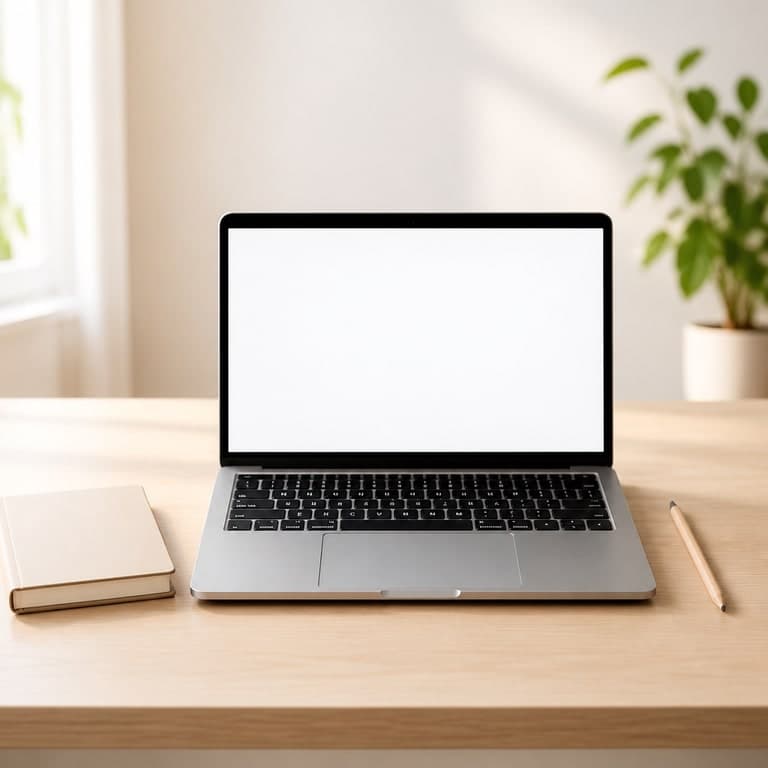
AI course thumbnail background example
AI Education Course Thumbnail Example
Create a cleaner course thumbnail background from a simple study desk image without adding text inside the image....
Workflow FAQ
Does ImageRift support outpainting?
ImageRift supports source-guided aspect expansion and reframing. It is best described as canvas expansion rather than a pixel-level manual outpainting editor.
Which aspect ratios can I use?
The app supports source, square, portrait, and landscape output directions. Exact availability still follows active plan and generation settings.