AI image generator from image example
AI Game Asset Concept Example
Transform a rough prop reference into a more finished game asset concept with clearer materials and silhouette.
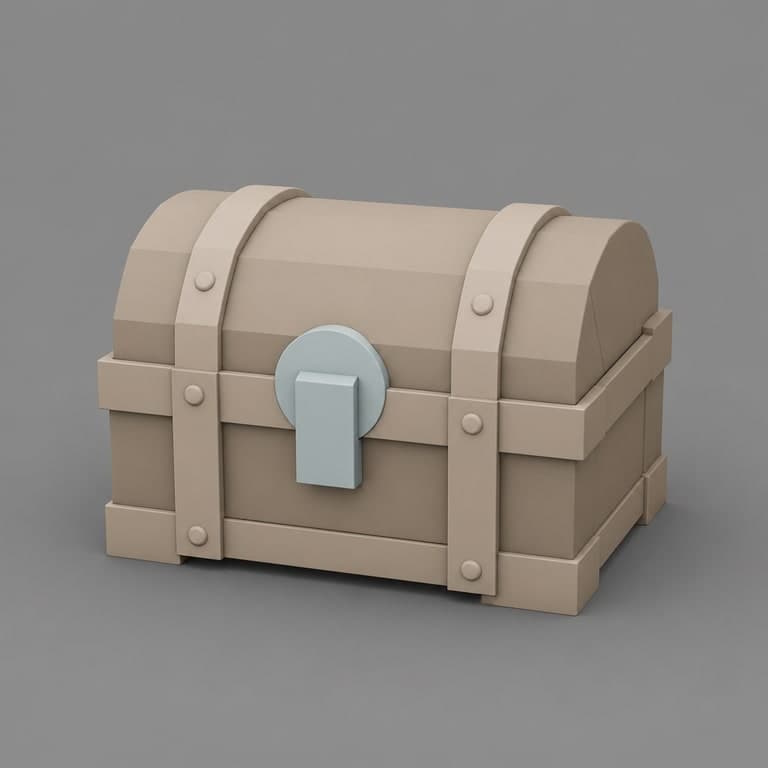
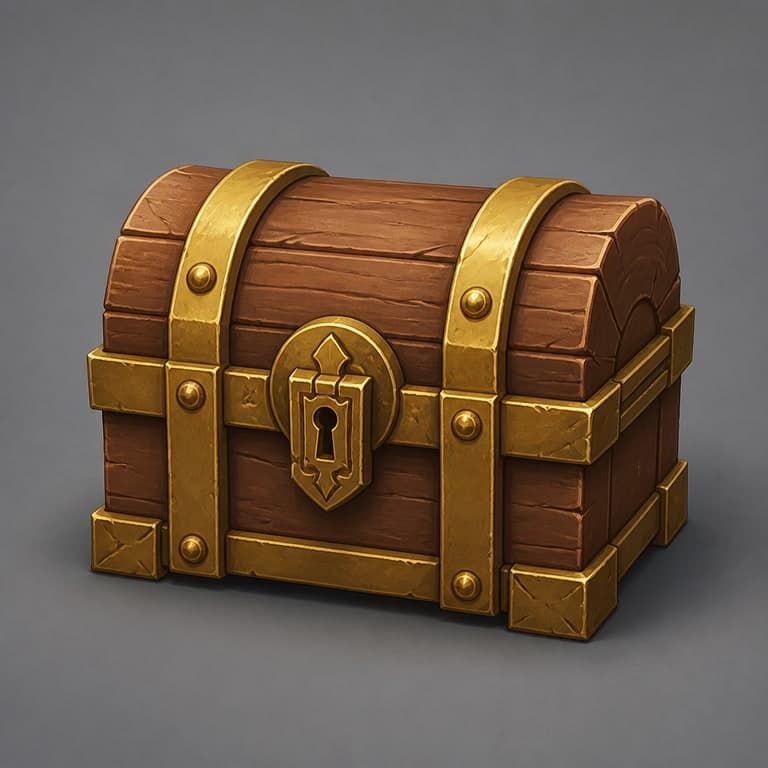
Workflow Notes
Game artists, indie studios, and creative teams turning rough blockouts into presentable concepts.
Keeps the object idea intact while adding production-ready style and detail.
Start with a clear source image so the subject and layout are easy to preserve.
Use prompts to control the concept render direction without changing the core subject too aggressively.
Create several versions, then use higher-resolution exports when the final image is ready for delivery.
How to recreate this result
This example page is built as a reusable tutorial, not just a before/after image. Start from a source image with a similar structure, borrow the prompt pattern, then open the matching workflow hub for deeper guidance.
Step 1
Match the source structure
Start with a source image that has a similar subject, crop, and composition to this concept render example.
Step 2
Reuse the prompt pattern
Keep the parts that describe style, lighting, and preservation rules, then replace the subject details with your own image context.
Step 3
Generate and compare
Judge the result against the original source image, not in isolation. The best output keeps the important structure anchored.
Step 4
Save the final version
Download the sample, save to your gallery, submit a strong result as a public example, or upgrade when you need plan-gated exports.
Best source image for this workflow
This example works best when the uploaded source already contains the subject, composition, and rough visual direction you want the AI to preserve.
Prompt settings used
Mode
Concept render
Output goal
Keeps the object idea intact while adding production-ready style and detail.
Prompt control
The prompt names style, lighting, composition rules, and what should not appear in the image.
Export path
Start with a standard test, then use 2K or 4K-class export only when your active plan supports it.
Common mistakes to avoid
- Using a source image that does not match the ai game asset concept example goal.
- Writing a prompt that asks for too many unrelated changes at once.
- Judging only the result image without comparing it against the source composition.
Prompt Used
Polished game asset concept, stylized fantasy treasure chest, readable silhouette, hand-painted materials, production concept art.
Try this promptFAQ
Can I recreate this concept render workflow?
Yes. Upload a similar source image, use the prompt direction shown on this page, and adjust the wording for your own brand, product, or scene.
Will the generated image stay close to my source image?
Image-to-image generation is designed to keep the main subject and composition recognizable, but stronger prompts can change styling, background, and details more noticeably.